
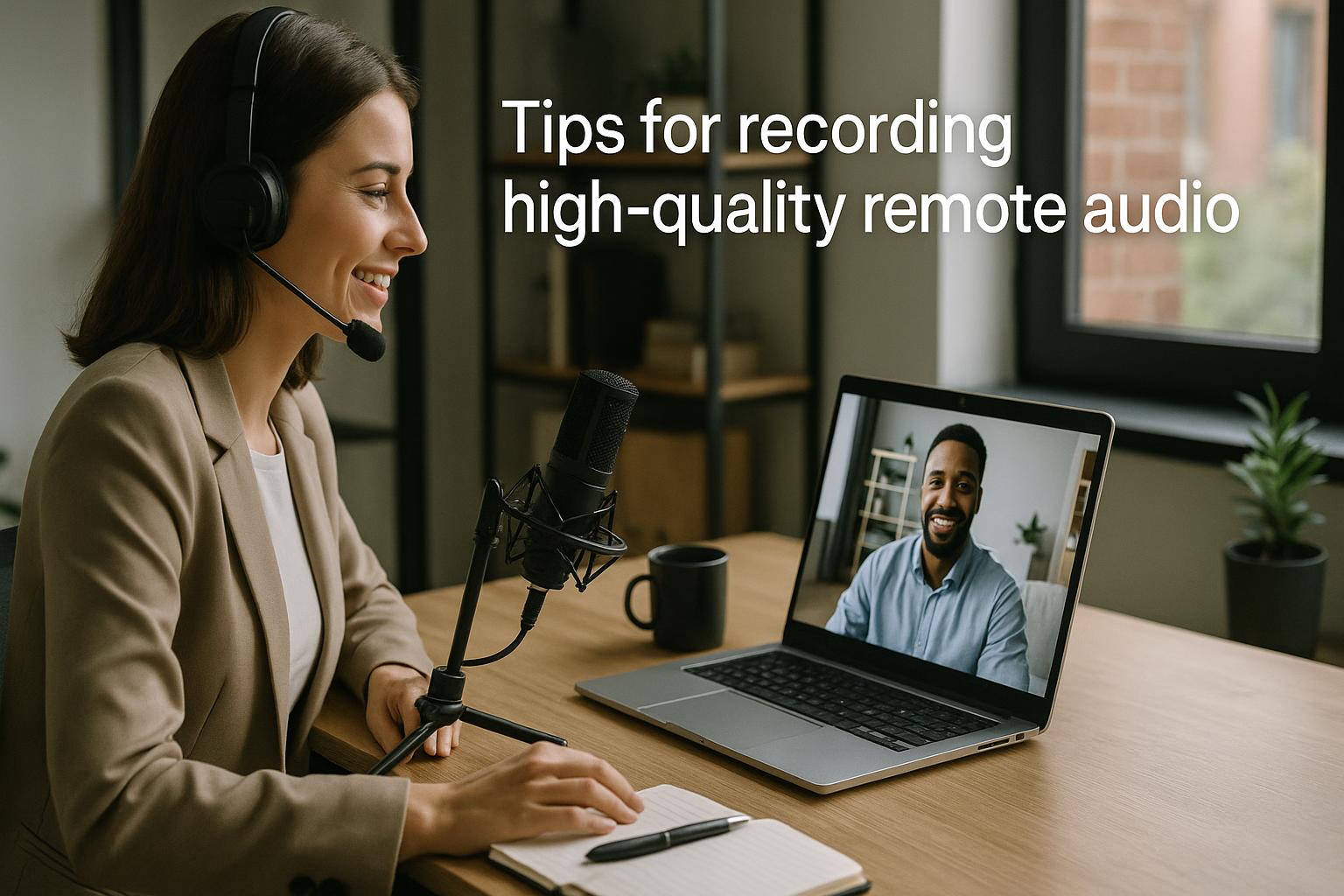
Prioritise the microphone, not the camera
Viewers will forgive a slightly soft picture, but they will switch off quickly if the audio is thin, echoey, or inconsistent. If you are recording remotely, treat the microphone as your main “camera”. A dedicated USB microphone or an XLR microphone via an audio interface will usually outperform a laptop mic by a wide margin. If you are using a headset, choose one designed for voice (not gaming ambience) and keep it consistent across contributors to avoid jarring changes in tone.
Choose the right mic type and placement
Mic choice matters, but placement matters more. For spoken voice, a cardioid microphone is a reliable option because it focuses on sound from the front and reduces room noise. Position the mic 10–15 cm from your mouth, slightly off-axis (angled a little to the side) to reduce plosives. If you are using a lapel mic, clip it mid-chest, keep it clear of clothing movement, and avoid necklaces or scarves that can rub against it.
Control your room acoustics with simple fixes
Remote audio quality is often limited by the room, not the kit. Hard surfaces create reflections that make speech sound distant and “boxy”. You do not need a studio to improve this: record in a smaller, furnished room, close curtains, add soft furnishings, and place a rug on hard floors. If you can, face into the room rather than towards a bare wall, and keep the microphone away from reflective surfaces like windows and desktops.
Reduce noise at the source
Noise removal tools can help, but prevention is better. Turn off fans, silence phones, and close unnecessary applications that may trigger notification sounds. If you are near a road, record away from windows and consider scheduling around peak traffic. For laptop users, be mindful of keyboard noise; use an external keyboard placed further from the mic, or pause typing while speaking.
Use headphones to prevent echo and feedback
Always monitor with headphones during remote sessions. If your speakers are on, your microphone can pick up the incoming audio and create echo, phasing, or feedback. Closed-back headphones are ideal because they reduce spill into the mic. This is especially important on panel discussions where multiple contributors are speaking and any echo becomes immediately distracting.
Set levels properly and avoid clipping
Good audio is clear, consistent, and comfortably loud. Aim for a strong signal without distortion: if your recording meter regularly hits the red, it is too hot and will clip, which cannot be fully fixed later. As a practical guide, aim for peaks around -6 dB and average speech around -18 to -12 dB where possible. If your microphone has a gain control, start low and increase gradually while speaking at your natural volume.
Record a local backup whenever you can
Internet fluctuations can cause dropouts, compression artefacts, and robotic-sounding audio. If the format allows, record a local audio track on each contributor’s device (even a voice memo as a last resort) while also recording the live call. A clean local track can be synced later for highlights, on-demand edits, or polished replays. For live webcasts, local recording still adds resilience for post-event content.
Optimise your Zoom (or similar) audio settings
Most platforms apply processing to keep speech intelligible, but the defaults are not always ideal. In Zoom, check your microphone input is correct, disable “automatically adjust microphone volume” if it causes pumping, and test noise suppression levels to ensure they do not cut off softer speech. For music or higher-fidelity audio, enable the appropriate high-fidelity or “original sound” options, and test with the exact setup you will use on the day.
Keep contributors consistent with a simple checklist
Multi-speaker remote recordings often suffer because each person uses a different setup. A short contributor checklist can dramatically improve consistency: use headphones, sit in a quiet room, place the mic close, avoid noisy clothing, and keep your distance to the mic steady. Ask speakers to join 10–15 minutes early for an audio check, and encourage them to stay on the same device and network throughout.
Be mindful of internet and device performance
Audio quality can degrade when a device is under load or the network is unstable. Use a wired ethernet connection where possible, or sit close to the router on Wi‑Fi. Close heavy applications, avoid downloads during the session, and keep your device charged or plugged in. If you have to choose between video and audio stability, prioritise audio and reduce video resolution.
Do a short test recording and listen back properly
A live mic test is helpful, but a recording test is better. Record 30–60 seconds of speech, then listen back on headphones. Check for room echo, hiss, plosives, and sudden volume changes. If something sounds off, adjust one variable at a time: mic distance, room position, gain level, or platform settings. This simple step prevents most avoidable issues and saves time during the live session.
Plan for the live mix: levels, transitions, and captions
If your recording is part of a live webcast, consider how audio will be mixed alongside slides, videos, stings, and audience Q&A. Consistent speaker levels make transitions smoother and reduce the need for aggressive compression. Clear audio also improves automated captions and makes manual captioning more accurate, which supports accessibility and viewer retention.
Want your remote audio to sound broadcast-ready on the day? Enbecom Studios produces live remote webinars and webcasts, bringing in Zoom contributors and mixing them with titles, captions, slides, pre-recorded video, interactivity and more, then streaming live to multiple platforms. If you would like support with audio checks, contributor management, live mixing, and reliable delivery, explore our services at https://enbecom.tv.