
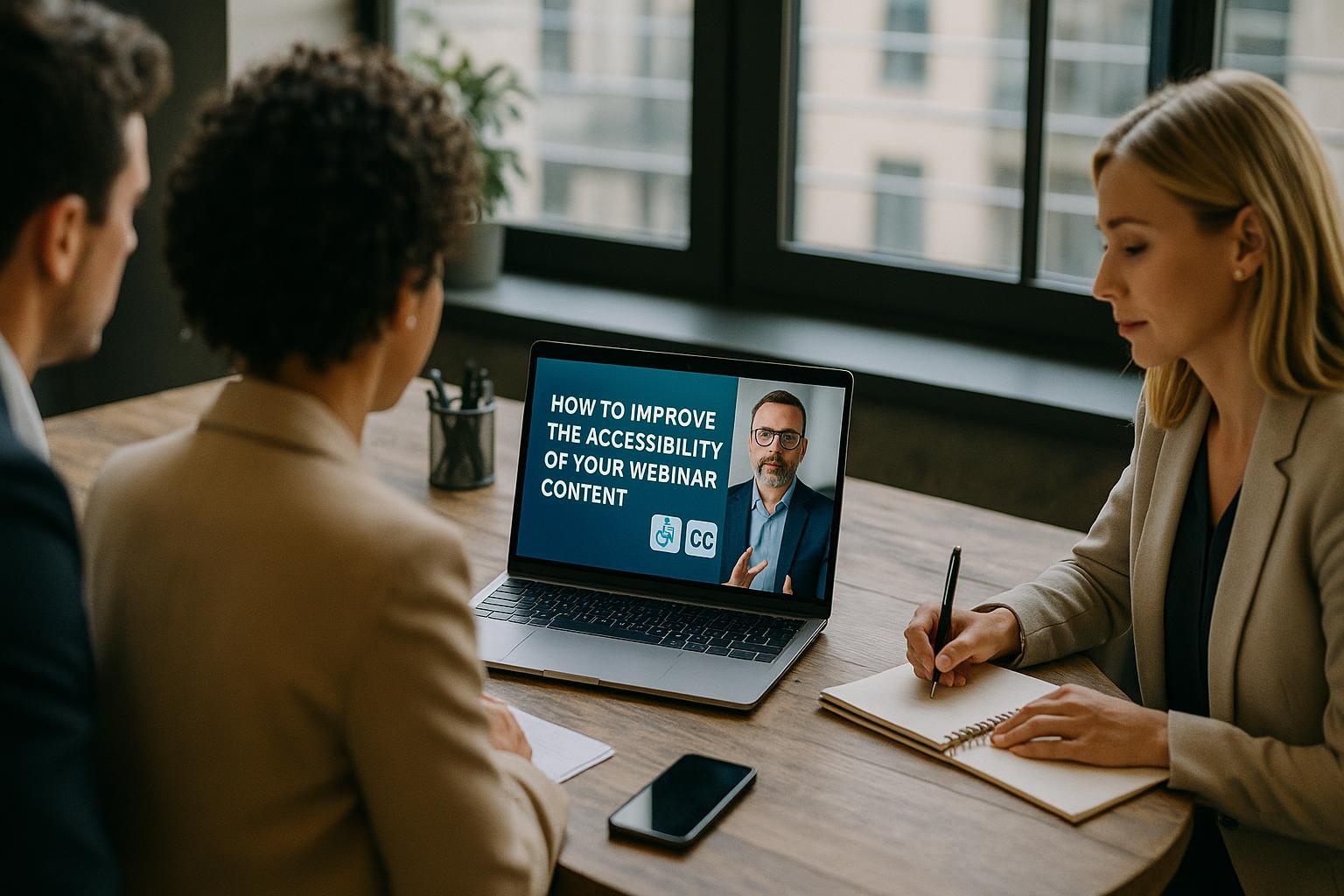
Accessibility is not an add-on; it is part of good webinar craft. When your content is easier to see, hear, understand and navigate, you reduce drop-off, improve engagement, and make your message more inclusive for disabled people, neurodivergent audiences, non-native speakers, and anyone joining from a noisy environment or on a small screen.
Start with captions and transcripts as standard. Live captions (or high-quality automated captions with human checking) are one of the biggest accessibility wins you can make. They support people who are Deaf or hard of hearing, viewers watching on mute, and attendees in shared workspaces. Follow up with a downloadable transcript and time-stamped notes for anyone who prefers reading, uses a screen reader, or wants to revisit key points quickly.
Make your audio clean, consistent and easy to follow. Accessibility often fails first at the microphone. Encourage presenters to use a decent headset or USB mic, speak at a steady pace, and pause between sections. Reduce background noise where possible, and keep levels consistent across speakers, videos and stings. If multiple contributors are joining remotely, aim for a quick sound check and a simple rule: one person speaks at a time, and they identify themselves when they start talking.
Design slides for readability, not decoration. Slides should support your spoken content, not compete with it. Use large font sizes, high contrast, and a clear hierarchy. Avoid placing essential text over busy images, and do not rely on colour alone to communicate meaning (for example, “items in red are urgent”). If you share charts, label them clearly and summarise the key takeaway in plain language. For complex visuals, consider an additional “explainer” slide with the main message and a simplified view.
Describe what people cannot see. When you show a diagram, a demo, or a video clip, narrate what is happening and why it matters. A simple habit helps: say what you are showing, what has changed, and what viewers should notice. This benefits blind and partially sighted attendees and also helps anyone who is multitasking or experiencing poor video quality.
Keep language clear and structure predictable. Use sentence case in titles, avoid unnecessary jargon, and define acronyms the first time you use them. Break content into short sections with clear signposting: “first… next… finally…”. A predictable structure supports cognitive accessibility and reduces fatigue. Where you must use specialist terms, add a brief explanation in the moment and include a glossary in follow-up materials.
Build accessible interactivity. Polls, Q&A and chat can be highly inclusive, but only if they are managed well. Read out key questions before answering them and summarise chat themes for people who cannot track fast-moving messages. Give attendees more than one way to participate (voice, chat, Q&A, or a form). When running polls, keep options short and unambiguous, and allow enough time for people using assistive technology to respond.
Plan for keyboard and screen reader users. Ensure registration pages, joining instructions, and any links shared during the webinar can be navigated by keyboard and work with screen readers. Use descriptive link text (for example, “download the handout (PDF)” rather than “click here”). If you provide PDFs, make sure they are tagged properly, have selectable text, and follow a logical reading order.
Offer accessible formats after the live session. On-demand viewing should include captions, a transcript, and, where appropriate, an audio-described version or a written summary of visual-heavy sections. Provide slide decks in an accessible format and include speaker notes if they add context. Make it easy to find these resources in one place, with clear filenames and dates.
Support presenters with an accessibility checklist. Many accessibility issues are unintentional and easy to prevent with a short pre-event checklist. Cover microphone choice, lighting and camera framing, slide contrast and font size, how to describe visuals, and how to handle Q&A. A quick rehearsal can identify problems such as small text, unreadable screen shares, or a presenter who speaks too quickly when nervous.
Test with real-world conditions. Join your own webinar from a laptop, a phone and (if possible) with captions enabled. Try it with headphones off, in a noisy room, and on a slower connection. Check whether key information is still understandable. If you can, ask a colleague who uses accessibility features (zoom, high contrast, screen reader, captions) to do a short test and share feedback.
Make accessibility part of your production, not just your platform. The best results come from combining the right tools with thoughtful live direction: consistent lower-thirds, readable on-screen text, well-timed captions, clear speaker cues, and smooth transitions between remote contributors, slides and pre-recorded video. When accessibility is built into the run of show, your audience feels it as clarity and professionalism.
Want your next webinar to be more accessible, polished and engaging? Find out more about Enbecom Studios’ live remote webcasting and video services, including bringing in live Zoom feeds, mixing in titles, captions, slides, pre-recorded videos and interactivity, then streaming to multiple platforms: https://enbecom.tv.